Famicom Disk System
Modern Drive Solutions
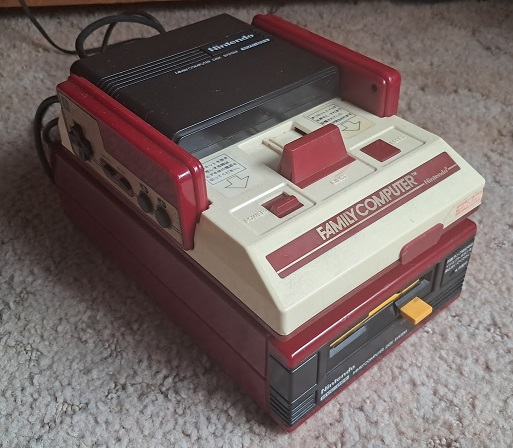
For those of you that are interested in video game and Nintendo history, buying a Famicom Disk System seems like a no brainer. I don't have anything to add to this statement. I'm simply having trouble trying to get this thing started.
Anyway, these things are now forty years old. Floppy disk drives have moving parts, rely on volatile magnetic media, and kind of suck in general. Unless you live in Japan, you're not going to find disks for this at a thrift store. eBay is the most practical option and everything is overpriced now. Famicom disks were rewritable, so there's no telling what you'll actually get.
Even if you never use your Famicom Disk System, it's drive belt WILL go bad. It takes about a decade, but there's no getting around it. Replacing the belt is a nightmare; even for a professional like myself. I hate doing it, and sourcing a quality belt is significantly harder than it used to be.
So yes, there are a lot of minor risks. Generally, with regard to your money. It'd be one thing if this stuff was cheap, but it isn't. You'll need patience and the confidence required to replace a Drive Belt. It's not a simple repair despite how easy it sounds. As such, I'd recommend sticking with software emulation if any of this sounds like it's too much.
What about those of you that don't want to deal with forty year old disk drives but still want to use an NES or Famicom to play Disk System games? You're covered too. Software emulation is pretty cool, but hardware emulation is even better.
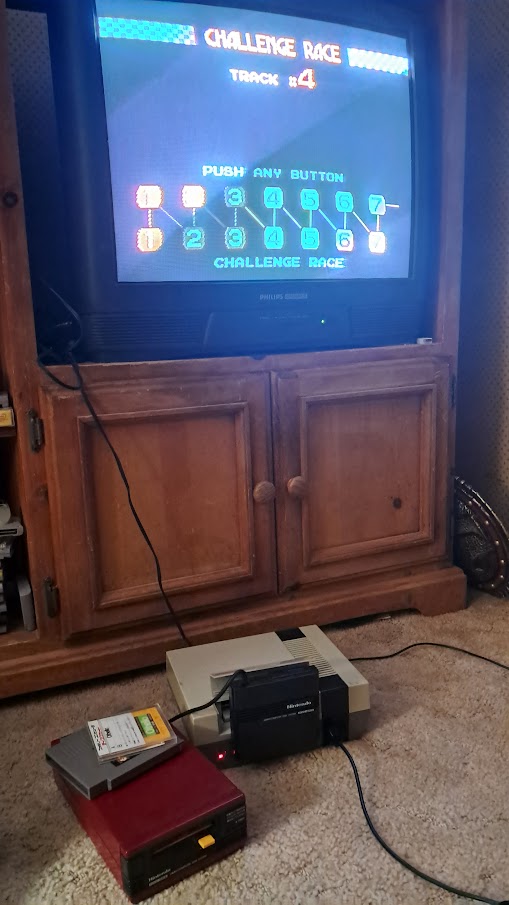
What I am about to show you is nowhere near as impractical as this is.
Drive emulators
A drive emulator is a device that replaces a physical floppy, CD, or DVD drive by emulating its electrical and communication behavior. To the host system, it appears to be the original drive. These devices read the contents of dumped disks from and SD Card or internal flash memory.
Most console drive emulators require the user to dismantle the console and install it. Thankfully, that's the not the case with the Famicom Disk System. You can plug these into your Disk System's RAM adapter and begin playing in moments.
You can go back to using your disk drive any time you want. Just plug it back in to your RAM adapter and you're good to go.
As far as I'm aware, there are three different drive emulators out there. I have the two most popular ones. They're both fine devices; roughly equal in capability. Accessability is another story and we'll be discussing that as it comes up.
FDS Stick
Click here to buy one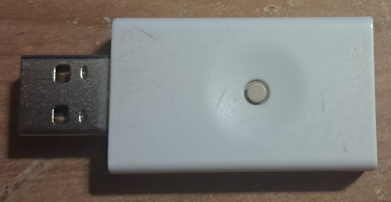
You may think that the FDS Stick is archaic or even completely inferior to the FDSKey. That depends on how you intend to use it. The FDSKey is good, but it fails to render the FDS Stick completely obsolete.
Windows Software required!
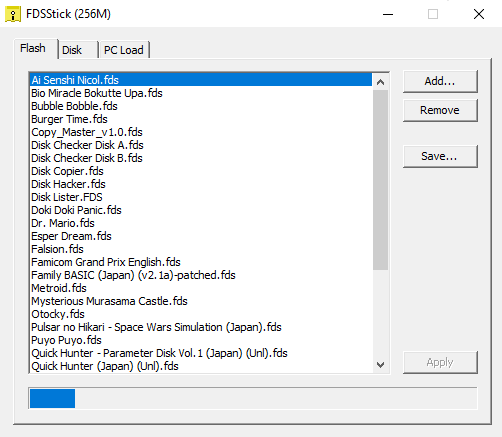
The FDS Stick requires you to use custom Windows software designed specifically for it. With this utility (Which doesn't seem to have a name) you can load disk images onto the device, use your computer to load data directly to the RAM Adapter, and dump disk images to PC if you build a special cable.
The program works flawlessly but this approach is fundamentally flawed. Development on this project is long over if "Last updated 2016" is any indication. There's no telling when a new version of Windows will break something that this program relies on. I don't know if Windows 11 breaks this program. I haven't seen anything, and I have no intention of installing Windows 11 to test it.
General Usage
After you've loaded your Disk Images, plug your FDSStick into your RAM Adapter and turn the power on. You'll be greeted with a list of everything you loaded onto it. Upon selecting your game, it loads up just like it would off of a disk. Because you're using a RAM Adapter, the expansion audio works perfectly. Flipping the disk is easy, but unintuitive. There's a button on the FDS Stick. Press it once for side A. Double press for side B.
You can use the software to load .fds images directly from your PC. Simply plug the USB side into your computer and the FDS side into your RAM adapter. Doing this in combination with DuplFDS and a modded Disk Drive allows you to copy .fds files to disk with some cable swapping. Be sure to pay close attention to the "Insert/Eject" button.
FDS key
ClusterM's FDSKey on Github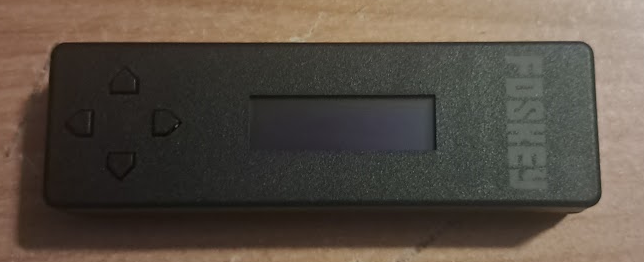
The FDSKey is an open source drive emulator for the Famicom Disk System. While it's more robust than the FDS Stick, it's not necessarily better. It doesn't rely on Windows software. Instead, opting for a simple MicroSD card format. :oad your .fds files onto your card and reinsert it into the FDSkey. The device features four buttons and an OLED screen. Instructions for navigating the menu can be found here. The OLED screen may be difficult to read if you have even moderate vision. This could be a deal breaker if you're visually impaired.
Future-proof, at least for now
FDSKey is self contained so there's no reliance on outside software. Users can create blank disk images and easily copy data from physical disks. There is no need for users to create custom cables or utilize a Windows PC. Any device that can load files to an properly formatted SD card will suffice.
Usability
Gameplay wise, the FDSkey is just as good as the floppy drive and the FDS Stick. Disk flipping requires users to access the device and manually do so with the four directional buttons. The screen lights up whenever game data is being loaded off of the disk. If you look closely, it'll even tell you how far along it is.
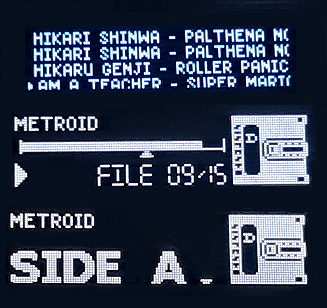
TOP: The games Menu
Middle: Loading
Bottom: Disk Side Swap
The github repository is a useful resource. All kinds of important information can be found there.
But which should I get?
That's up to you. For most I'd guess it boils down to what kind of menu you'd like and whether or not you intend to copy/create disks. It's easier to manage your physical disks with the FDSKey, but it's OLED is tiny so it may be impractical for some. The FDS Stick is easier to buy, cheaper, and it's menu is integrated into the console. I'd say that if you're interested in preservation, the FDSKey is a no brainer. If you're looking to play games, go with the FDS Stick. That is, if you have a Windows PC. Playing a game with either one is almost the same experience.
Why shouldn't I use an Everdrive?
Because I can't promise you that it'll work. I found minor graphical problems within Bubble Bobble and Vs. Excitebike in my first 10 minutes of testing. I made sure to compare with real disks and the two drive emulators. Only the Everdrive has these problems. Whether or not this matters to you is up to personal taste. Me? I don't care that Bubble Bobble has a different colored menu background every time it's accessed. However, what the hell else is going on that I can't see? There's no way to know unless I try them all, I suppose. Different models of NES/Famicom also produce different results. My Top Loader will consistently show a black screen for Bubble Bobble's background for example, but the AV Famicom doesn't.
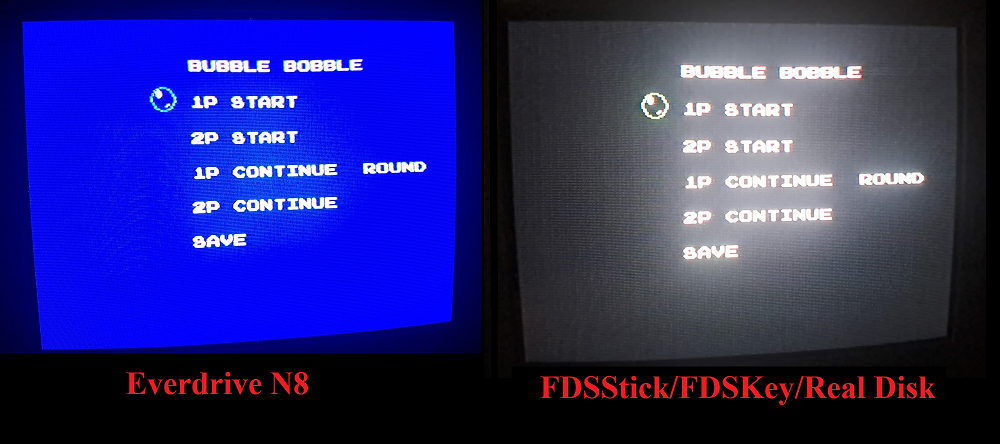
Well then
Due to copyright, the Everdrive N8 doesn't use the original Famicom Disk System BIOS. I have no idea what role the original BIOS plays if any at all, but I'd guess that this bootleg BIOS is part of the problem. I'm sure you could replace the BIOS, but I don't know if it'd have any effect and it's beyond the scope of this article. Just know that out of the box, the Everdrive leaves a lot to be desired.
The Everdrive N8 will detect when a disk needs to be flipped and do so automatically. I say "generally" because this doesn't work every time. It fails to trigger whenever I play random shovelware. The Everdrive N8 Pro has a button for flipping disks built into the cartridge; negating the issue..
What about twin famicom?
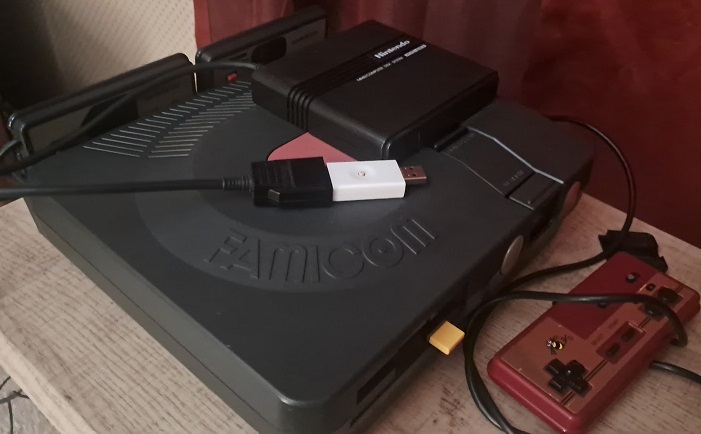
Probably not what you're thinking
Twin Famicom is fully compatible with both of these. in fact, there was a kit you could use to integrate an FDSkey into your console permanently. Sadly, it's no longer available. Why not build your own? Access to the built in RAM Adapter is facilitated via port C on the Twin Famicom. Cables can be built to interface each device directly to the Twin Famicom's in-built RAM Adapter.